Introduction #
Today, there are many cheap Android TV boxes on the market. They can stream 4K video smoothly, support HDMI-CEC, and offer a solid TV experience at a low price point.
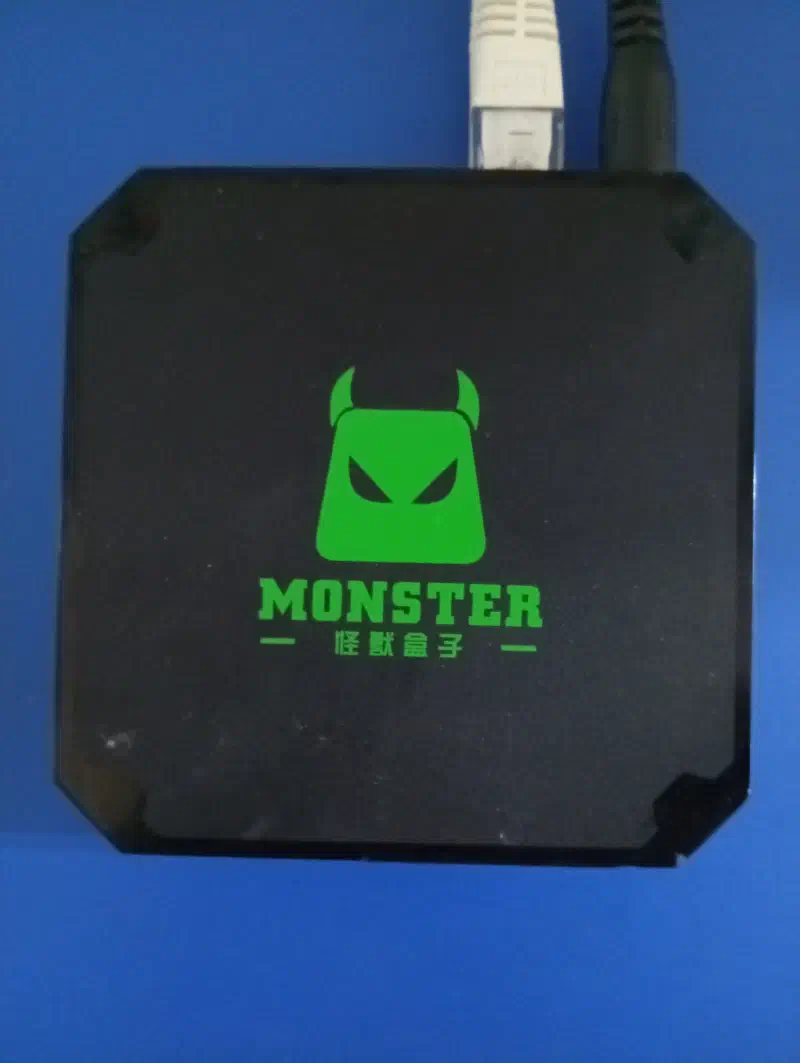
I found this TV box a few weeks ago. It is roughly a several years old from an era when streaming apps were much less common.
Since the box was still functional, I plugged in an HDMI cable and a USB keyboard (since the original remote control was missing) to check the system overview:
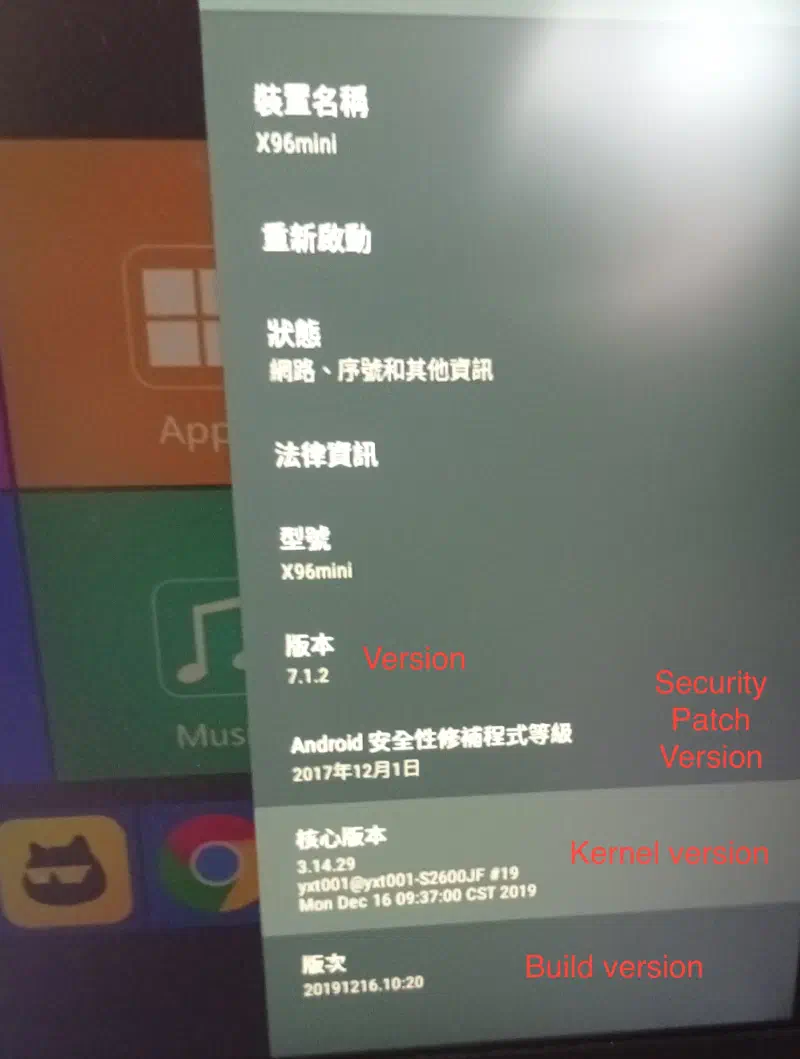
With only 2 GB of RAM, running modern Android applications is difficult, and official system updates are no longer available. This led me to search online for alternative uses for old TV boxes.
According to Linus Tech Tips and Reddit discussions, some cheap Android TV boxes come with malware pre-installed out of the box:
Reddit: X96 Mini stock firmware has malware, where to find clean alt?
Considering the security risks and the lack of system updates, installing a fresh operating system is necessary to make these boxes useful again.
Popular open-source options include OpenWrt, LibreELEC, and other media OSs. However, OpenWrt is mainly focused on networking, and media consumption is better handled on other devices. Therefore, I decided to install a lightweight Linux distribution on it.
Armbian is a specialized Linux distribution based on Debian/Ubuntu optimized for ARM architecture devices (though it can work on x86 as well). It provides a user-friendly setup that is great for beginners.
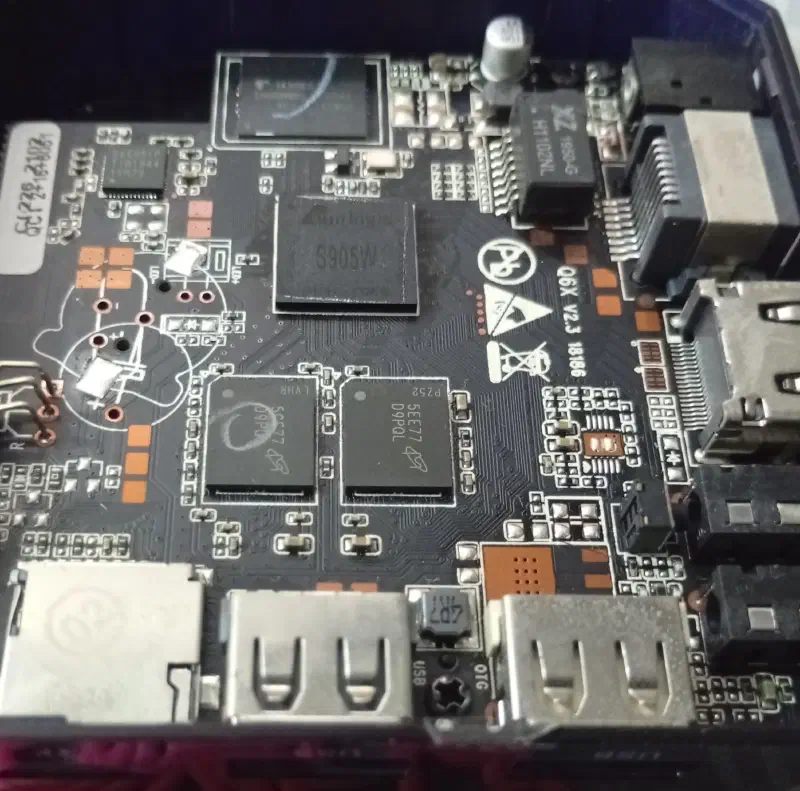
First, identify the exact board model and CPU chipset of your device. My device is an X96 Mini with an Amlogic S905W processor (shown as s905w or s905 series):
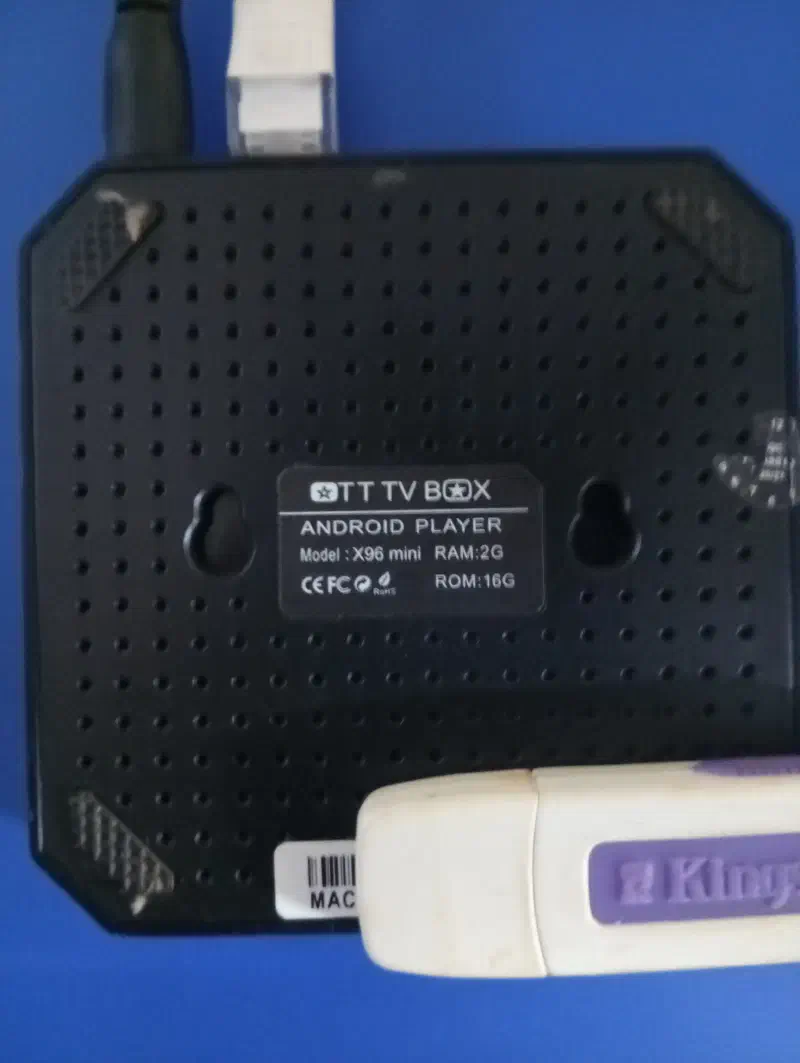
I followed this YouTube tutorial for guidance. Although the video is in Chinese, the general process is identical across most guides:
Step 1: Booting Armbian from External Storage #
-
1. Download the ISO Image from GitHub
Download
Obtain firmware
Go to the page. Find the latest build that matches your CPU architecture (e.g., Amlogic S905W), download it, and extract the image file. -
2. Flash Image to Boot Drive
Flash
SD Card / USB
Flash the extracted.imgfile onto a USB drive or MicroSD card using a tool like BalenaEtcher or Rufus. On the X96 Mini, using the MicroSD card slot is usually recommended for boot priority. -
3. Configure the DTB Boot File
Config
DTB Selection
Open the flashed boot drive on your computer. Navigate to/boot/dtb/amlogic/and locate the.dtbfile corresponding to your CPU model (e.g.,meson-gxl-s905w-x96-mini.dtb). Copy the exact filename. Then, open/boot/uEnv.txtin a text editor and update the line to match your file name:FDT=/dtb/amlogic/your-dtb-name.dtb -
4. Boot and Configure Armbian
First Boot
System Setup
Insert the boot drive into the device. To enter recovery/boot mode on the X96 Mini, use a toothpick or small pin to press and hold the hidden button inside the AV port while plugging in the power cable. Hold it for a few seconds until the Armbian boot screen appears. Follow the on-screen prompts using your USB keyboard to create your root password and initial user account.
Step 2: Installing Armbian to Internal eMMC Storage #
Running Armbian off an SD card works, but requires holding the reset button or keeping the SD card inserted on every restart. Some features like Wi-Fi or Bluetooth might also be disabled by default.
To make the setup permanent and improve performance, you can flash Armbian directly onto the internal eMMC storage.
-
1. Update the On-Board System
Terminal
Armbian Tools
Log in via SSH or directly through the terminal. Update the Armbian utilities by running:
armbian-updateThis process may take a few minutes.
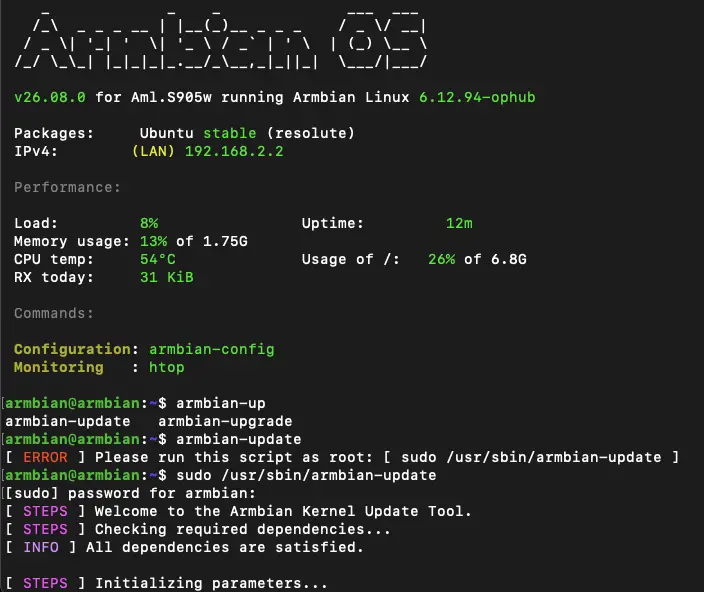
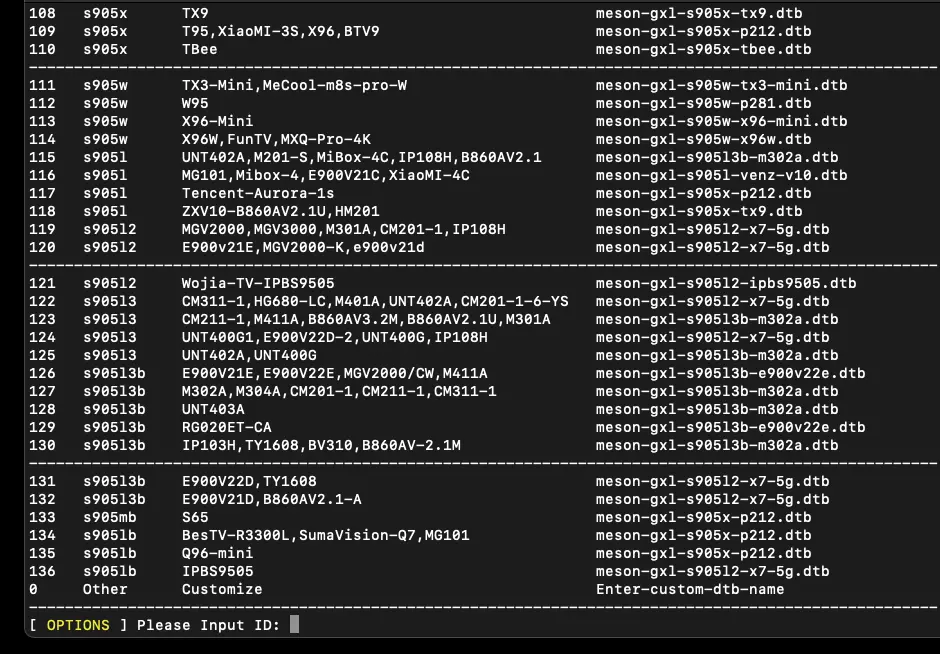
Next, run the upgrade command:
armbian-upgradeSelect your corresponding device ID when prompted (e.g., 113 for the X96 Mini S905W).
-
2. Install OS to Internal eMMC
Install
eMMC Flashing
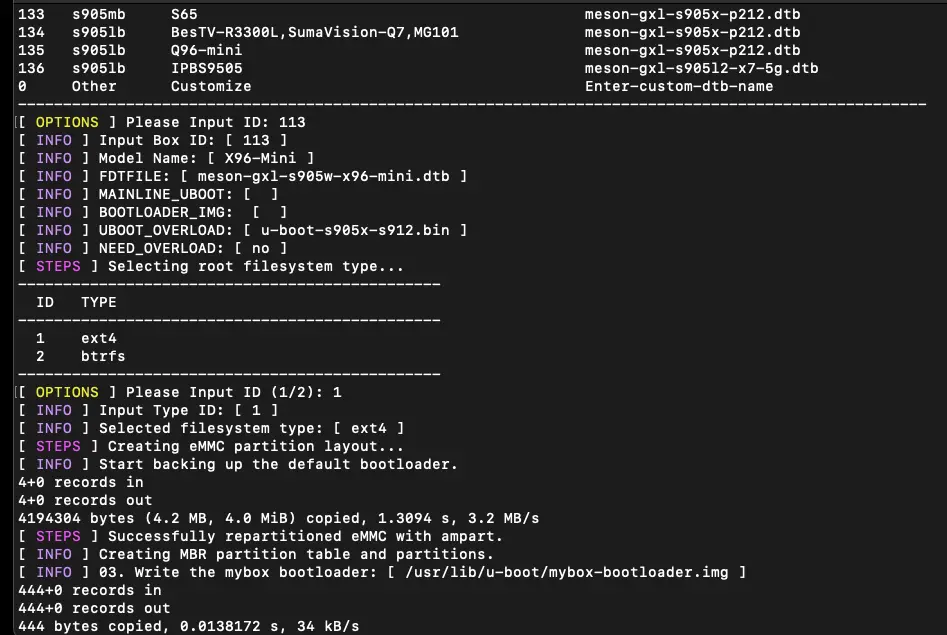
To initiate the installation to internal memory, run:
armbian-installFollow the on-screen prompts. When asked to choose a file system, select ext4 (the standard file system for general Linux usage).
Conclusion #
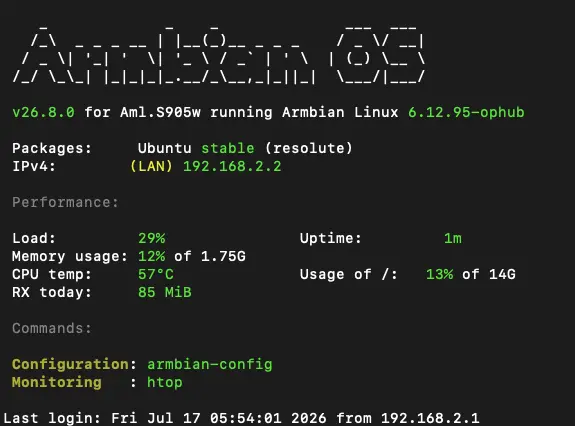
Once the installation finishes, power off the box, remove the MicroSD card or USB drive, and power it back on. The X96 Mini will now boot directly into Armbian Linux from its internal storage!