Introduction #
Since an Armbian device is usually wired directly to the router and sits idle, it makes an ideal home server for lightweight network services like OpenWrt, Pi-hole, or AdGuard Home.
While OpenWrt requires significant effort to configure properly and Pi-hole often demands ongoing maintenance, AdGuard Home strikes the perfect balance with its clean user interface and easy setup.
1. Installing Docker on Armbian #
First, install Docker using the built-in Armbian configuration utility:
sudo armbian-config --cmd CON001Once installed, verify that both Docker and Docker Compose are available on the system:
docker --version
docker compose version
The result should be similar to this:
Docker version 29.1.3, build 29.1.3-0ubuntu4.1
Docker Compose version 2.40.3+ds1-0ubuntu1
2. Setting Up Docker Compose #
It is best practice to keep the Docker setup inside a dedicated directory for easier management and debugging. Create a directory for docker configuration:
mkdir -p ~/docker && cd ~/docker
nano docker-compose.yml
Paste the following YAML configuration into the file (press Ctrl+O, Enter to save, then Ctrl+X to exit):
services:
  adguardhome:
    image: adguard/adguardhome:latest
    container_name: adguardhome
    restart: unless-stopped
    # Volumes persist your filters, stats, and configurations
    volumes:
      - ./workdir:/opt/adguardhome/work
      - ./confdir:/opt/adguardhome/conf
    ports:
      - "53:53/tcp"
      - "53:53/udp"     # Core DNS service
      - "8000:80/tcp"     # HTTP Web UI (after setup)
      - "443:443/tcp"   # HTTPS Web UI / DNS-over-HTTPS
      - "443:443/udp"   # DNS-over-QUIC
      - "3000:3000/tcp" # Initial Setup Wizard
      - "853:853/tcp"   # DNS-over-TLS
    # Optional: If you intend to use AdGuard as a DHCP server, uncomment the lines below
    # cap_add:
    #   - NET_ADMIN
    # network_mode: "host"
Note: Mapping host port 8000 to container port 80 prevents conflicts with other applications running on common web ports like 80 or 8080.
3. Resolving the Port 53 DNS Conflict #
On Debian and Ubuntu distributions, the default systemd-resolved daemon listens on port 53. This creates a conflict with AdGuard Home or Pi-hole, preventing the container from starting because the port is already bound. It can also disrupt mesh network tools like Tailscale.
Follow these steps to free up port 53:
-
Configuration
1. Disable the stub listener in systemd-resolved
Log in via SSH or open a terminal. Edit the systemd-resolved configuration file:
sudo nano /etc/systemd/resolved.confLook for the DNS= and DNSStubListener=yes lines (or add them at the bottom) and set them as follows:
DNS=127.0.0.1
DNSStubListener=no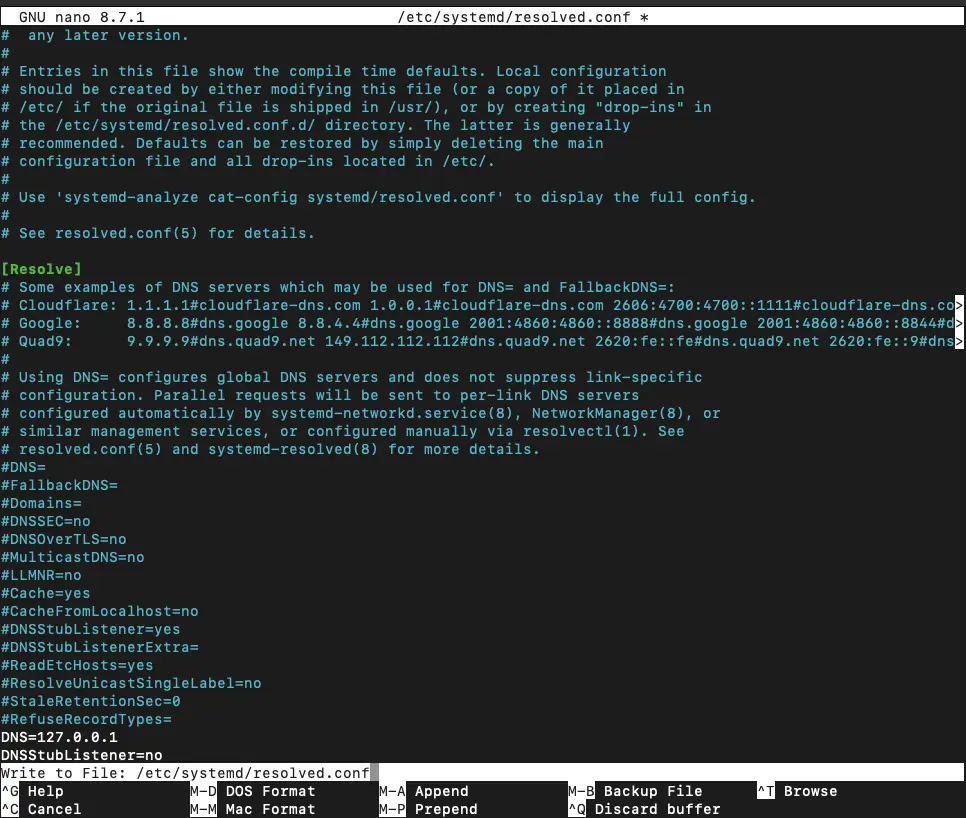
Create a symbolic link so Armbian points directly to the real resolved file instead of the port 53 stub listener:
sudo ln -sf /run/systemd/resolve/resolv.conf /etc/resolv.conf -
Verification
2. Restart systemd-resolved & verify port 53
Apply the changes by restarting
systemd-resolvedand Check if anything is still listening on port 53:sudo systemctl restart systemd-resolved sudo ss -lpnt | grep :53Expected Result: If the last command returns blank (no output), port 53 is officially free.
4. Launching AdGuard Home & Initial Setup #
Now, start the AdGuard Home container from the ~/docker/ directory:
sudo docker compose up -dAssuming the device is in bridge mode and has a static IP address on the local network (e.g., 192.168.0.50 by router or device config) open your browser and navigate to the setup wizard:
http://192.168.0.50:3000/install.html
Complete the initial setup wizard and create admin account:
5. System Configuration #
Go to DNS Settings and configure the Upstream DNS servers:
tls://dns.google
https://dns.google/dns-query
tls://dns11.quad9.net
https://dns11.quad9.net/dns-query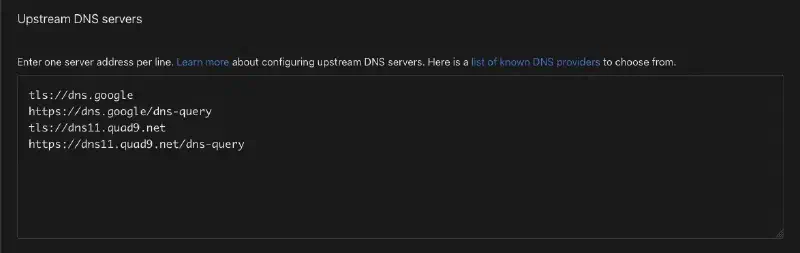
Next, add the Bootstrap DNS servers:
8.8.8.8
8.8.4.4
9.9.9.11
149.112.112.11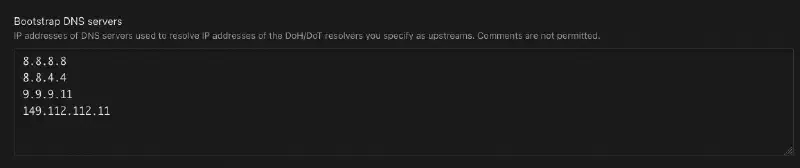
Under DNS server configuration, setting Rate limit to 0 (disabled)
Encryption Settings: Local network setups usually do not require encryption unless AdGuard Home connects to a public network or routing via Tailscale.
6. Adding DNS Blocklists & Rules #
You can find popular third-party blocklists depending on needs, such as:
HaGeZi Multi Pro (The “Ad & Privacy” Filter)
Great balance between aggressive ad/tracker blocking and zero website breakage
https://raw.githubusercontent.com/hagezi/dns-blocklists/main/adblock/pro.txtHaGeZi Threat Intelligence Feeds mini
Blocks active malware, phishing, scam, and cryptojacking domains.
https://cdn.jsdelivr.net/gh/hagezi/dns-blocklists@latest/adblock/tif.mini.txtTo add these, navigate to Filters > DNS Blocklists > Add blocklist > Add a custom list:
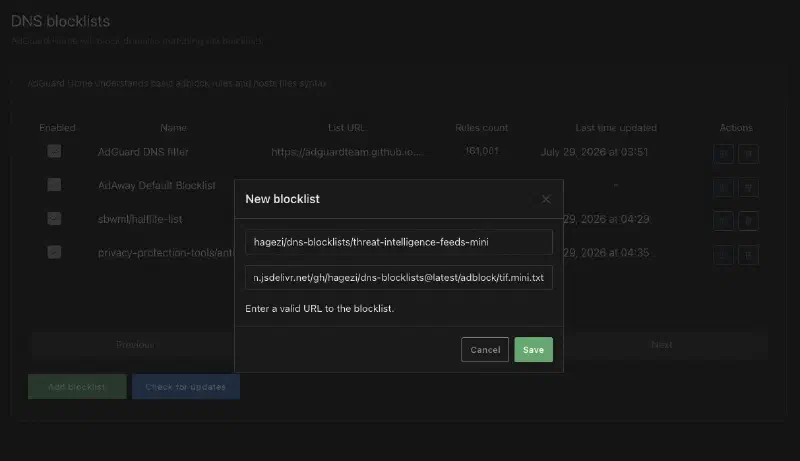
DNS Allowlists: Use this section to unblock any websites that accidentally get caught in your blocklists.
DNS Rewrites: Acts like a local DNS server, allowing you to map custom domain names (e.g., nas.local) to local IP addresses.
Conclusion #
To wrap up, configure the client devices (or the router’s DHCP settings) to use the device’s IP address as their primary DNS servers. It is also good practice to set a public DNS server (like 8.8.8.8 or 1.1.1.1) as a secondary DNS option on the router level, ensuring network connectivity isn’t lost if the AdGuard Home server undergoes maintenance.